
Introduction
Setting your iPhone to vibrate mode allows you to receive notifications without the disruptive ringtones, making it ideal for meetings, theaters, or any quiet environments. This guide will walk you through easy steps to activate and personalize vibrate mode on your iPhone while addressing any issues that may arise.
Why Use the Vibrate Option on Your iPhone?
Choosing vibrate over sound notifications provides significant advantages for both personal and professional interactions.
Benefits of Vibrate Mode:
1. Discreet Notifications: Keep your surroundings peaceful while staying updated.
2. Instant Awareness: Stay informed of calls or messages without sound alerts.
3. Non-Disruptive Presence: Maintain a noise-free environment.
Appropriate Situations for Vibrate Mode:
1. Meetings: Keep focus intact by avoiding audible interruptions.
2. Public Transport: Respect shared spaces by using silent alerts.
3. Quiet Nights: Remain connected without noise disturbances.
Understanding when and why to use vibrate mode can greatly enhance your experience. Now, let’s see how you can activate this feature on your device seamlessly.
Step-by-Step Guide to Setting Your iPhone to Vibrate
Activating vibrate mode on your iPhone is quick and uncomplicated.
Enabling Vibrate in Silent Mode:
1. Open the ‘Settings’ app on your device.
2. Go to ‘Sounds & Haptics’.
3. Toggle on ‘Vibrate on Silent’.
Activating Vibrate in Ring Mode:
1. Within ‘Sounds & Haptics’, toggle on ‘Vibrate on Ring’.
By following these steps, your iPhone is now set to vibrate in both silent and ring modes, providing a custom notification setup for different scenarios. For even greater personalization, explore how to create custom vibration patterns.
Customizing Vibration Patterns on iPhone
Having distinctive vibration patterns allows you to differentiate types of alerts instantly.
Creating Custom Vibration Alerts:
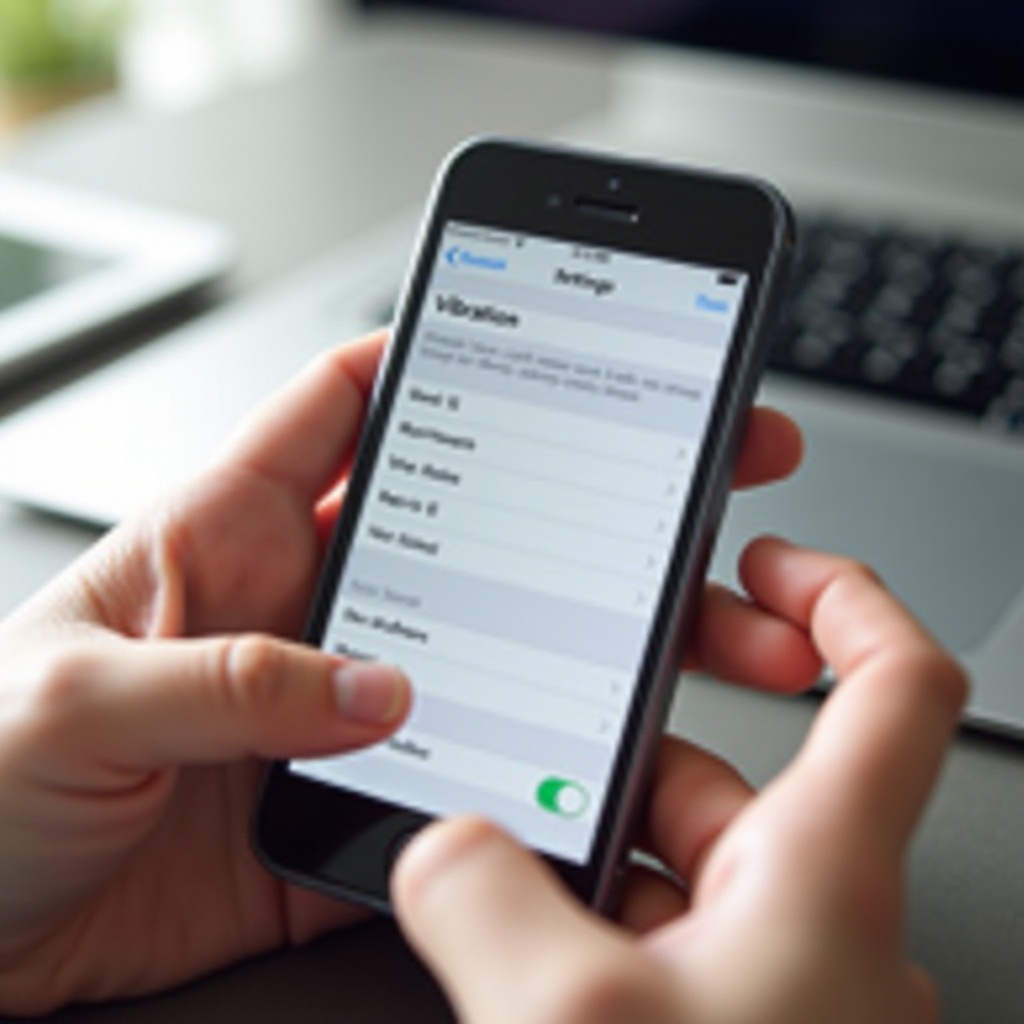
1. In ‘Sounds & Haptics’, tap on ‘Ringtone’ or ‘Text Tone’, then tap ‘Vibration’.
2. Select ‘Create New Vibration’.
3. Tap out your desired pattern on the screen and ‘Save’ it.
Exploring Default Vibration Patterns:
1. Go to ‘Settings’ > ‘Sounds & Haptics’.
2. Under ‘Vibration’, choose from various preset options like ‘Heartbeat’ or ‘Rapid’.
These customizable settings empower you to tailor notifications to your unique preference. At times, however, you might face issues with your device’s vibration function. Here’s how to troubleshoot these common problems effectively.
Troubleshooting Common Vibrate Issues on iPhone
If your iPhone’s vibration function misbehaves, here are practical steps to fix it.
Basic Troubleshooting Steps:
1. Verify that ‘Vibrate’ settings in ‘Settings’ are enabled.
2. Restart your iPhone to refresh system settings.
3. Ensure ‘Do Not Disturb’ is deactivated.
Advanced Solutions for Persistent Problems:
1. Update your iPhone to the latest iOS for bug fixes.
2. As a last resort, consider performing a factory reset.
These strategies should restore your iPhone’s ability to vibrate as expected. Moving beyond troubleshooting, there are additional ways to further optimize your vibrate settings and overall experience.
Additional Tips for Optimizing iPhone Vibrate Settings
Further adjustments can enhance your iPhone’s notification management system.
Using Third-Party Apps:
– Some apps provide enhanced control over notification settings, complementing iOS features.
Adjusting Vibrate Settings for Accessibility:
1. Under ‘Settings’, open ‘Accessibility’ > ‘Touch’, to fine-tune vibration intensity.
2. Consider enabling ‘LED Flash for Alerts’ for visual notifications alongside vibrate.
These insights offer deeper personalization, allowing an even more tailored and effective use of vibrate mode.
Conclusion
Mastering your iPhone’s vibrate settings paves the way for enhanced communication without imposing on others. From activation to customization and troubleshooting, using the vibrate mode effectively will ensure that notifications are non-disruptive yet immediately noticeable, making it easier to stay connected in various environments.
Frequently Asked Questions
Why won’t my iPhone vibrate when receiving texts?
Ensure that ‘Vibrate on Silent’ and ‘Vibrate on Ring’ are both enabled in the ‘Settings’. Check if ‘Do Not Disturb’ is active and verify the device’s vibration motor functionality.
How can I increase the vibration strength on my iPhone?
Navigate to ‘Settings’ > ‘Accessibility’ > ‘Touch’ to adjust the ‘Vibration Intensity’ settings, ensuring they match your preferences.
Does enabling battery saver affect vibration notifications on an iPhone?
Battery saver generally affects background activities but should not impact the vibration settings directly. Make sure that necessary settings are active for vibration alerts to function even in low power mode.