
Introduction
Connecting your smart TV to a cable service is a rewarding task that can maximize your entertainment options. Many users find the setup process daunting, but with the right instructions, you’ll enjoy a seamless connection. This guide aims to walk you through each step to ensure an optimal cable TV setup on your smart TV.
Pre-Setup Requirements
Before you start connecting your smart TV to cable, ensure you have all the necessary equipment and your devices are compatible. This preparation step is crucial in avoiding setup difficulties.
- Checking Compatibility: Confirm that your smart TV supports cable connections. Most modern TVs come with HDMI ports, digital tuners, and audio/visual inputs needed for cable. Refer to your user’s manual for specifics.
- Gathering Necessary Equipment: Gather the following items:
- A coaxial cable
- An HDMI cable
- The cable box from your service provider
- Remote controls for both the TV and cable box
Having these items ready will streamline the setup process.
Step-by-Step Guide to Connecting Your Smart TV to Cable
With your equipment ready, follow these steps to connect your smart TV to cable successfully:
- Connecting the Cable Box to Your Smart TV:
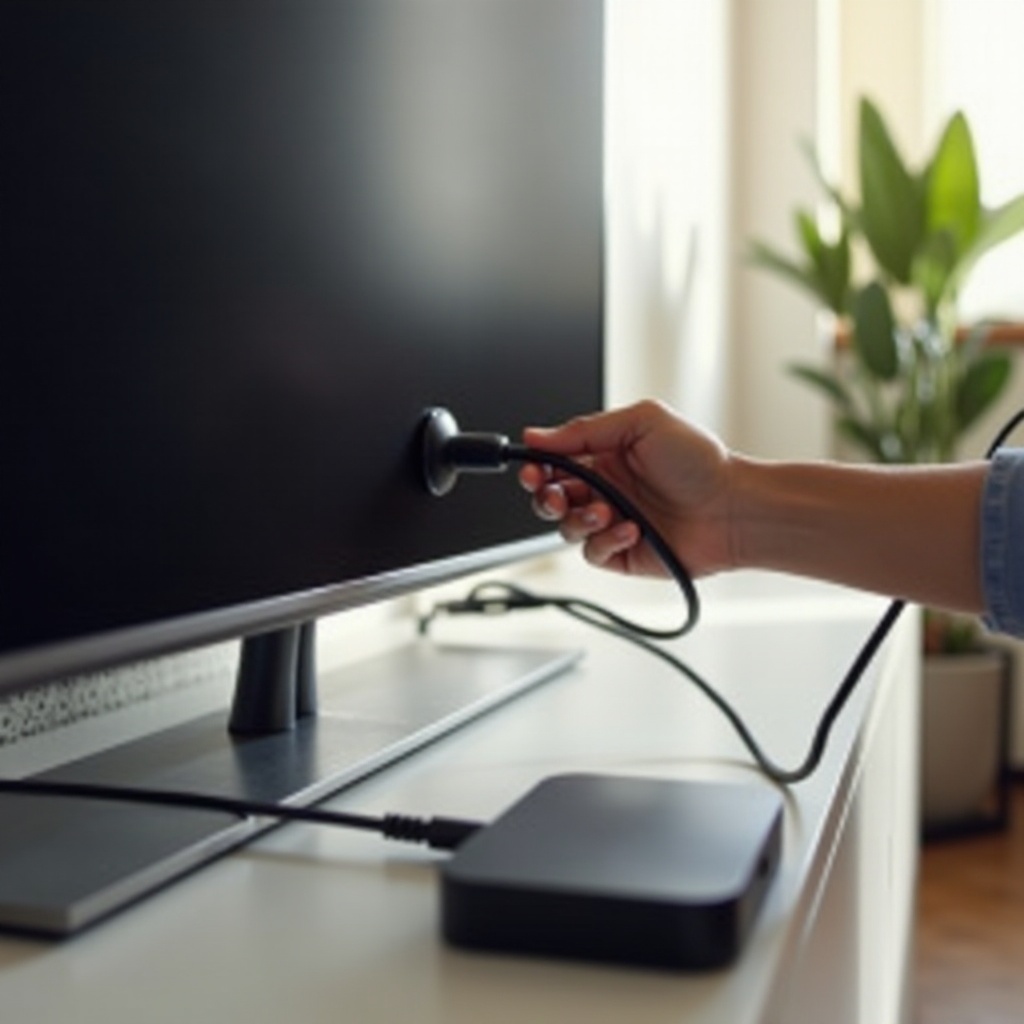
- Connect one end of the coaxial cable to the wall outlet.
- Attach the other end to the ‘Cable In’ port on your cable box.
- Connect one end of the HDMI cable to the cable box.
-
Plug the other end of the HDMI cable into an available HDMI port on the TV.
-
Configuring Input and Signal Settings:
- Turn on both the smart TV and cable box.
-
Use your TV remote to cycle through inputs until you find the cable input.
-
Activating the TV and Confirming Cable Connection:
- Follow your cable provider’s on-screen instructions to activate your service.
- Use the cable box remote to complete any setup prompts.
Completing these steps will connect your smart TV to cable, allowing access to your provider’s full offering.
Troubleshooting Common Connection Issues
When connecting a smart TV to cable, issues may arise. Fortunately, most are easily resolved with a few adjustments.
- Resolving Picture and Sound Problems:
- Ensure all connections are secure.
- Confirm the correct input is selected on your TV.
-
Adjust settings in your cable box menu if necessary.
-
Addressing Cable Signal Errors:
- Restart your cable box and TV.
-
Contact your provider for assistance with signal problems.
-
Remote Control Setup and Configuration:
- Pair the remote following manufacturer instructions.
- Replace remote batteries if they seem weak or non-responsive.
Solving these common problems ensures a flawless viewing experience.
Enhancing Your Cable Watching Experience on a Smart TV
A smart TV provides opportunities beyond basic cable viewing. Utilize its additional features for enhanced entertainment.
-
Utilizing Smart TV Features: Your smart TV likely comes equipped with apps and streaming capabilities. Connect to the internet to access apps alongside your cable service.
-
Accessing Additional Channels and On-Demand Features: Explore extra channels and on-demand content from your cable provider, often available through integrated apps.
Leveraging these features enhances your viewing options, making your smart TV a versatile entertainment hub.
Additional Tips for Optimizing Your Smart TV Setup
Further optimize your smart TV setup with these tips:
-
Updating Software for Best Performance: Keep your TV firmware updated to ensure compatibility with the latest features.
-
Integrating Streaming Services with Cable: Seamlessly enjoy streaming services alongside cable by utilizing combined interfaces available on most smart TVs.
These small enhancements can significantly improve your overall TV experience.
Conclusion
Connecting a smart TV to cable can be a smooth process when approached systematically. This guide has equipped you with the step-by-step instructions needed for a successful installation. By following these guidelines, you are well on your way to enjoying a versatile and comprehensive viewing experience.
Frequently Asked Questions
Can I Use a Smart TV Without a Cable Box?
Yes, smart TVs can access streaming services and local channels with an over-the-air antenna without needing a cable box.
How Do I Switch Between Cable and Streaming on My Smart TV?
Use the ‘Input’ or ‘Source’ button on your TV remote to switch between connected devices and apps.
What Should I Do If My Smart TV Doesn’t Recognize the Cable Box?
Ensure all connections are secure, the cable box is powered on, and the correct input source is selected on your TV.