
Introduction
Efficiently editing photo sizes on an iPhone is essential for users who want better storage management and high-quality social media posts. Since the digital needs are constantly evolving, leveraging both built-in features and advanced apps can enhance your productivity and photo quality. This article outlines how to seamlessly navigate through your iPhone’s photo resizing features while ensuring top quality.

Why Resize Photos on Your iPhone?
Resizing photos offers multiple advantages. It saves storage space and makes photo sharing faster without greatly reducing quality. It is also crucial for accommodating platform-specific upload requirements for a consistent and professional digital presentation. Our guide will first explore the built-in Photos app capabilities.
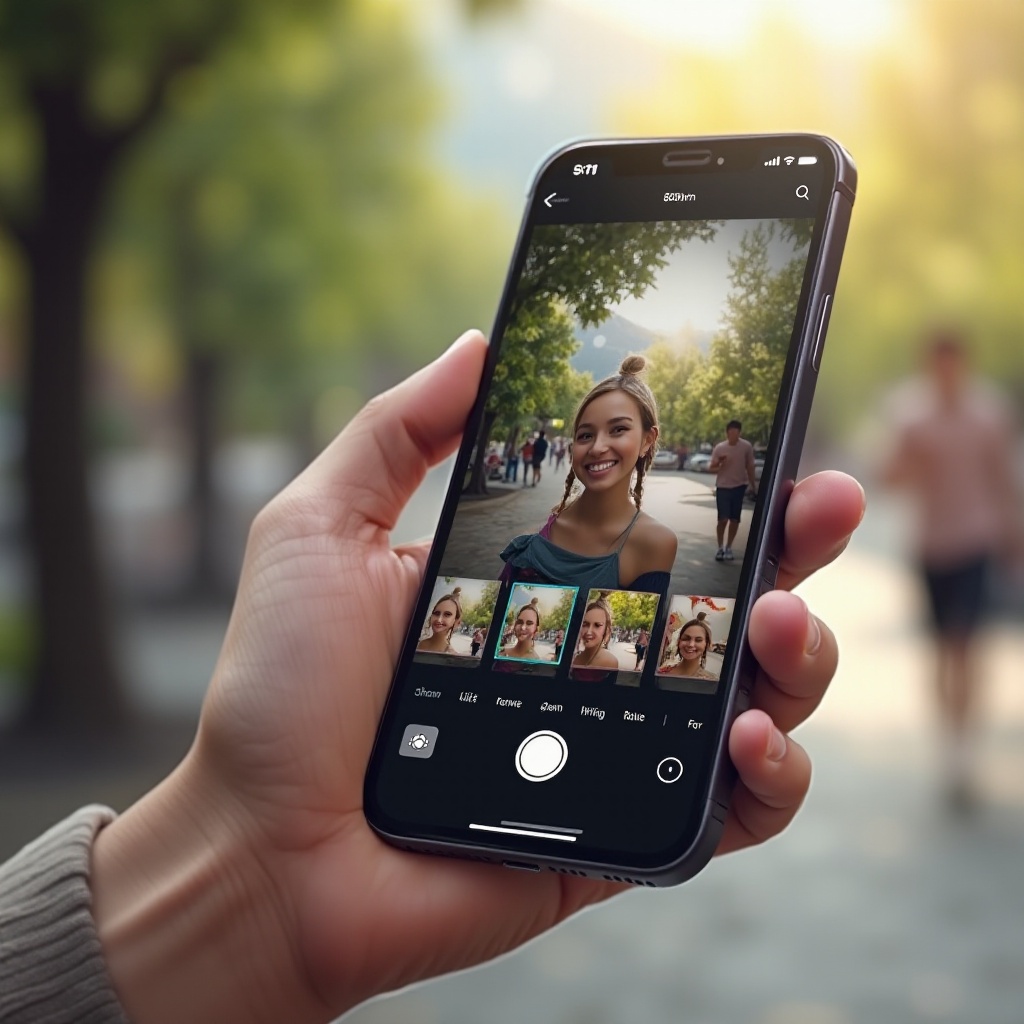
Using the Built-In Photos App to Resize Photos
The Photos app on iPhone offers basic yet efficient resizing features. Here’s how to use it:
1. Open the Photos App: Locate the app on your home screen.
2. Select a Photo: Find and tap on the desired image to open it.
3. Tap Edit: Access editing tools by choosing ‘Edit’ in the corner.
4. Use the Crop Tool: Select the Crop icon. Adjust manually or choose a preset ratio like ‘Square’.
5. Save Your Edits: Tap ‘Done’ once you’ve achieved the desired size.
When simplicity is enough, the Photos app offers a quick solution. However, there are situations where more advanced functionalities might be needed, which is where specialized apps come in handy.
Top Third-Party Apps for Resizing Photos
If more control over resizing is desired, third-party apps offer robust features:
– Snapseed:
– Sleek interface with detailed controls.
– Go to ‘Tools’ and select ‘Crop’ to explore aspect ratios.
- Adobe Lightroom:
- Rich in editing features.
-
Open, import, and use the ‘Crop’ tool to adjust dimensions finely.
-
Pixelmator:
- Renowned for comprehensive editing capabilities.
- After uploading, edit your photo by directly inputting required dimensions.
These apps allow for precise resizing, which is particularly important when preparing images for social media platforms.
Resizing Photos for Social Media Platforms
Social media platforms each have recommended sizes for optimal visual presentation:
– Instagram:
– Generally aim for 1080 x 1080 pixels for square posts.
– Use the square crop tool to maintain this ratio.
- Facebook:
- A common standard is 1200 x 630 pixels.
-
Resizing beforehand can prevent cropping on uploads.
-
Twitter:
- Photo size should be 1200 x 675 pixels.
- Crop your images accordingly to ensure visibility.
Adjusting your photos to fit each platform’s size specifications means your visuals will appear clean and impactful.

Maintaining Photo Quality While Resizing
Quality preservation during resizing is crucial:
1. Retain Original Resolutions: Start with photos of high resolution to reduce quality loss risk.
2. Lossless Formats: Use formats like PNG or TIFF to protect against excessive compression.
3. Preview Edits: Always check edited photos on larger screens to ensure quality maintenance.
By taking these steps, you can ensure a high-quality outcome even as you adjust your photos’ sizes.
Advanced Tips for Efficient Resizing
Frequent editing calls for a smart approach:
1. Batch Processing: Utilize apps with batch processing like Adobe Lightroom for efficiency.
2. Automation: Create presets for recurring resizing tasks within your apps.
3. Cloud Storage Backups: Keep original copies secure by storing them in the cloud.
Implementing these tactics saves you time and helps maintain systematic workflows, especially when handling several images at once.
Conclusion
Editing the size of photos on an iPhone is straightforward with the right tools and approaches. Utilizing built-in applications and exploring third-party options can empower you to create photos that meet both personal and professional standards. Take advantage of these methods to ensure your images are tailored exactly to your needs, both in terms of format and visual appeal.
Frequently Asked Questions
How do I change the file size of a photo on my iPhone?
Use the crop tool within the Photos app or third-party apps like Lightroom to adjust dimensions and export settings.
What’s the best app for batch photo resizing on iPhone?
Adobe Lightroom and Pixelmator offer excellent functionality for resizing multiple images at once.
Can resizing images affect their quality? How can I avoid this?
Yes, resizing can impact quality. Start with high-resolution photos, use lossless formats, and carefully choose resizing settings to minimize degradation.