
For Mac users, maintaining robust security often starts with managing your passwords effectively. With the constant evolution of cyber threats, changing your computer password regularly is a crucial preventive measure. This comprehensive guide will lead you through the process of updating your Mac password and provide helpful tips for enhanced security.
Why Changing Your Mac Password is Essential
Keeping your Mac’s password up to date is not just about protecting files; it’s about securing your entire digital world from potential threats. Cybercriminals employ innovative strategies to breach systems, often exploiting outdated or weak passwords. Regular updates decrease the risk of unauthorized access and reinforce your digital defense.
By regularly updating your password, you protect sensitive data ranging from financial information to personal communications. This proactive approach plays a significant role in maintaining a secure digital environment, where both personal and professional information stay safe. With this understanding, let’s move on to preparing for the password change process.

Preparing to Change Your Password on Mac
Before changing your password, a few preparation steps are wise to ensure a smooth transition. First, always back up essential data. Utilize tools like Time Machine or cloud services to safeguard your information during the password change.
Consider these preparation steps to begin:
– Backup your data: Securely store your files via Time Machine or a cloud service.
– System updates: Ensure your macOS is current to avoid compatibility issues.
– New password thinking: Choose a new, strong password carefully.
Successful preparation not only minimizes disruptions but also ensures a streamlined process when updating your password. With this groundwork laid, we can move to the practical steps of changing your Mac password.
Step-by-Step Guide to Changing Your Mac Password
Updating your Mac password is straightforward when following these detailed steps:
1. Open System Preferences: Click the Apple icon at your screen’s top-left corner and select ‘System Preferences.
2. Navigate to Users & Groups: In the System Preferences, click ‘Users & Groups.
3. Unlock settings: Click the lock icon at the bottom-left if it’s locked and enter your current password to unlock it.
4. Select your user account: In the ‘Current User’ section, choose your username.
5. Change Password: Click on the ‘Change Password’ button.
6. Enter credentials: Input your current password followed by your new password. Ensure the new password is strong.
7. Confirm your new password: Re-enter the new password to confirm. Optionally, add a password hint.
8. Save changes: Hit ‘Change Password’ to update it successfully.
This clear process ensures your Mac is shielded from unauthorized access. For those struggling with remembering passwords, resetting through your Apple ID offers an accommodating alternative.
How to Use Your Apple ID to Reset Your Mac Password
Forgotten your Mac password? Don’t worry. You can reset it using your Apple ID. Here’s how:
1. Access the login screen: Restart your Mac if necessary to enter the login screen.
2. Attempt your password thrice: After three failures, a message suggests using your Apple ID.
3. Use the reset link: Click the ‘Reset it using your Apple ID’ option.
4. Enter Apple ID details: Follow prompts to input your Apple ID and password.
5. Create a new password: Once verified, set a new password easily.
This method provides reassurance and flexibility when faced with forgotten passwords, ensuring continuous access to your Mac. Addressing issues promptly is crucial, which we’ll cover in the next section.
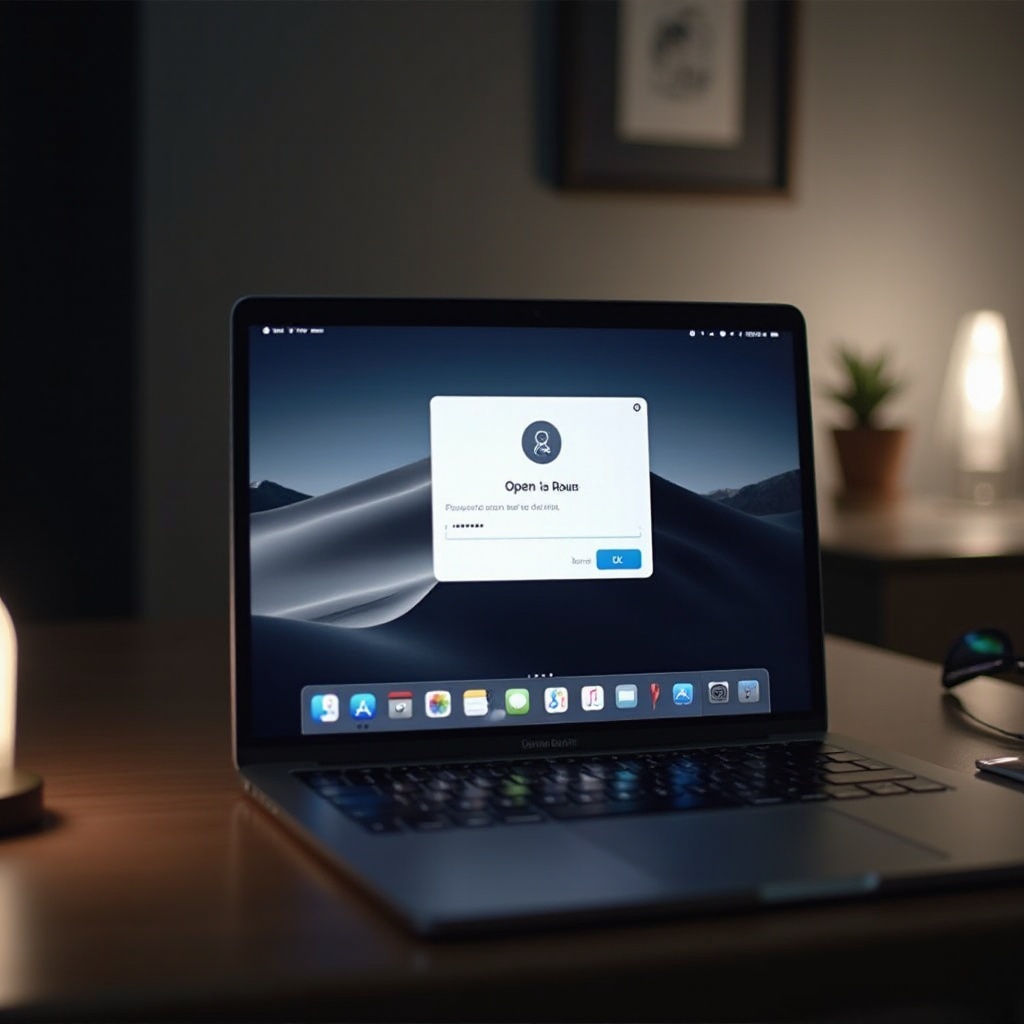
Troubleshooting Password Issues on Mac
Encountering issues while changing or resetting your password is not uncommon. Here are troubleshooting tips for smooth password management:
– Forgotten current password: If saved in the keychain, retrieve it using the ‘Keychain Access’ app in Utilities.
– macOS Recovery Mode: Start your Mac in Recovery Mode (Command + R) to use the Terminal for password reset.
– New password rejected: Ensure it complies with Apple’s security requirements—include a strong mix of characters.
Effective troubleshooting helps maintain your digital security without disruption. With these potential issues addressed, we can now focus on creating robust but memorable passwords.

Tips for Creating Strong and Memorable Passwords
Creating a strong password doesn’t mean it has to be forgettable. Here are strategies for developing secure yet memorable passwords:
– Diverse characters: Use a combination of uppercase, lowercase, numbers, and symbols.
– Avoid predictability: Don’t use common passwords like ‘password123.
– Passphrases: Choose a sequence of words that is hard to guess but easy for you to remember.
– Password managers: Use tools like 1Password or LastPass for secure password management.
By implementing these tips, you can make sure that your passwords are not just secure but also easy to remember, enhancing your overall digital safety. In conclusion, let’s recap the significance of password management in securing your Mac.
Conclusion
Regularly updating your Mac password is a vital part of maintaining your digital security in 2024. By following the steps outlined in this guide, you ensure that your personal and professional information remains secure against evolving cyber threats. Embrace the proactive measures discussed to maintain a secure digital environment that safeguards your valuable data.
Frequently Asked Questions
How often should I change my Mac password?
It is recommended to change your Mac password every six months or immediately if a security breach is suspected.
Can I change my password if I forget my current one?
Yes, you can reset your Mac password using your Apple ID or through macOS Recovery Mode as explained in this guide.
What should I do if my Mac isn’t accepting my new password?
Ensure your new password meets Apple’s security criteria. If issues persist, attempt troubleshooting through Recovery Mode or consult Apple Support.